How AB-Z Works
Accessing the platform
To use the ABZ e-learning platform, users need to meet a few basic technical, registration, and payment requirements.
1. Device Requirements
ABZ is designed to work on a wide range of internet-enabled devices. You can access the platform using:
- Smartphones.
- Tablets.
- Laptops or desktop computers.
For online learning and live streaming, users need a stable internet connection. If internet access is weak or inconsistent, users can download the AB-Z Windows app from the website.
The app is equipped for offline learning as it can download content in bulk or individual lessons or topics.
How to Register
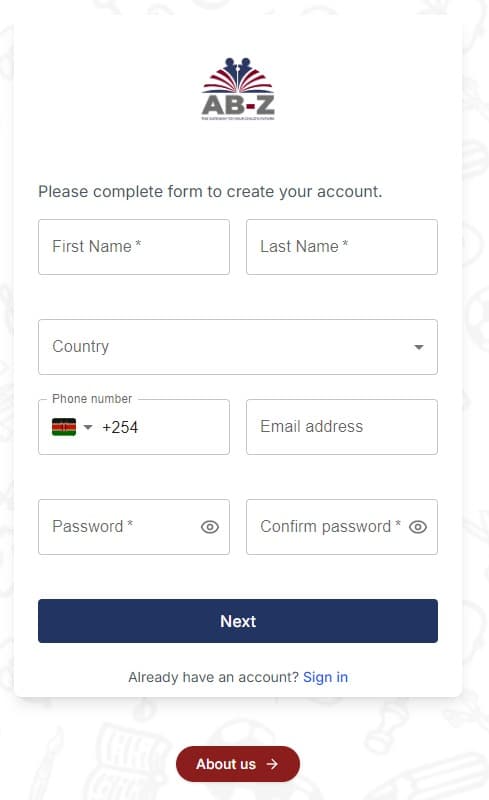
- Visit and Sign Up: Go to the official website at www.abzedu.com and click on the Sign Up option.
- Enter Genuine Details: You must register using a valid email address and a phone number.
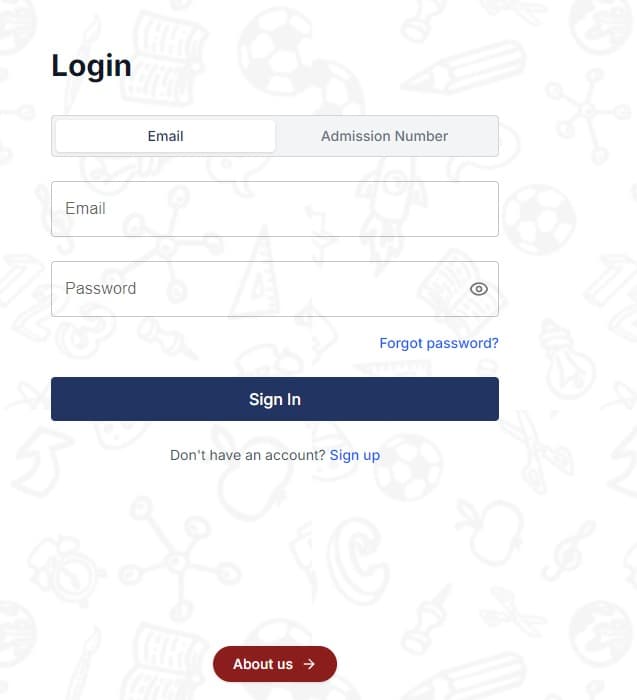
3. Login using the email and password given. Click the About Us button to get more informational content about the platform.
4. Choose your level (e.g. Secondary) and certification (e.g. 8-4-4 Secondary). Take a look at what is available — content available per topic in video, audio or text notes — on the menu under course outline. Click the About Us button to view sample lessons, and if satisfied with what is being presented you can proceed to choose a subscription.
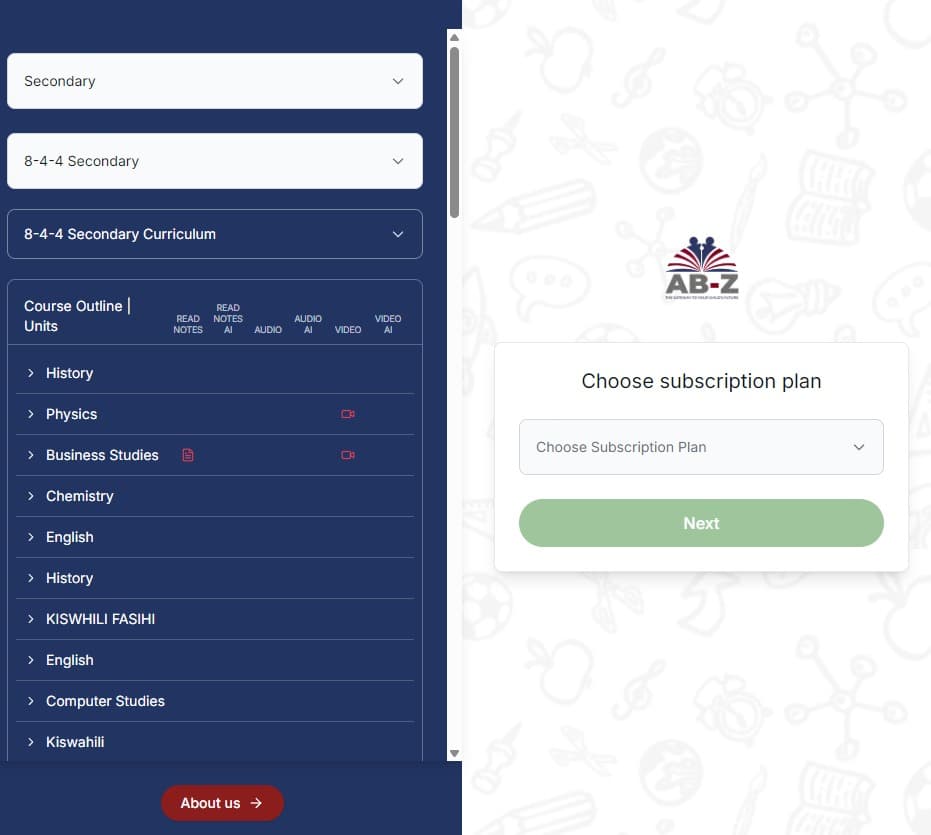
After choosing a subscription, proceed to the payment page where you can complete the payment process for your account using M-Pesa or Pesapal (Airtel Money, Visa, Mastercard…).
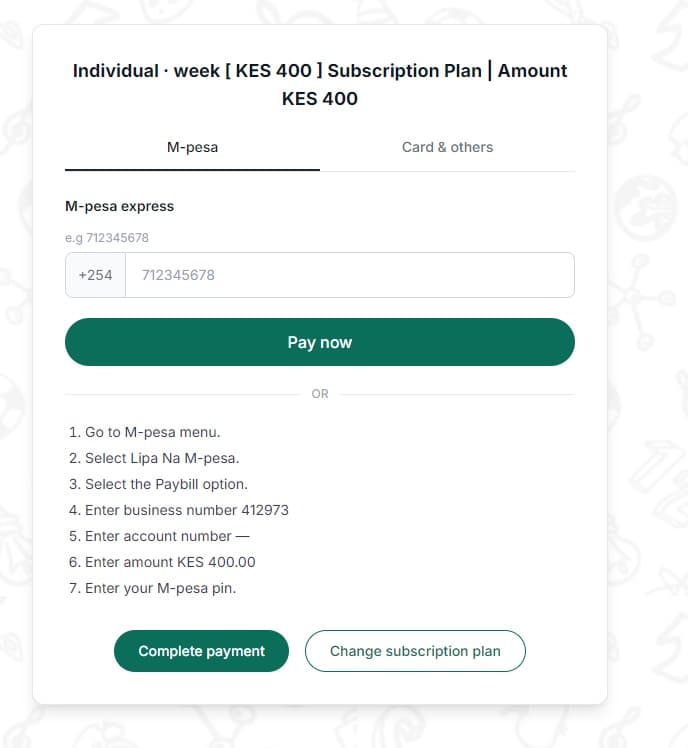
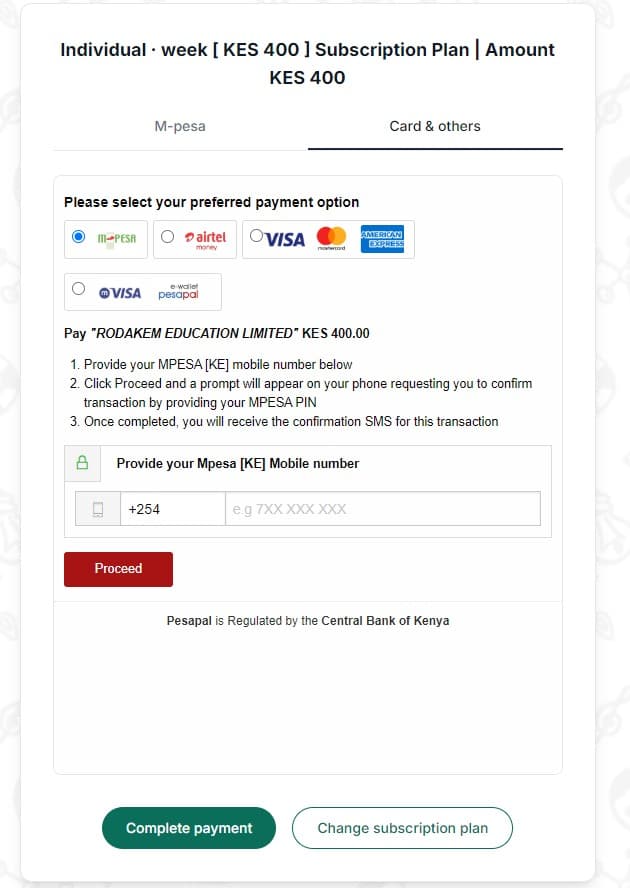
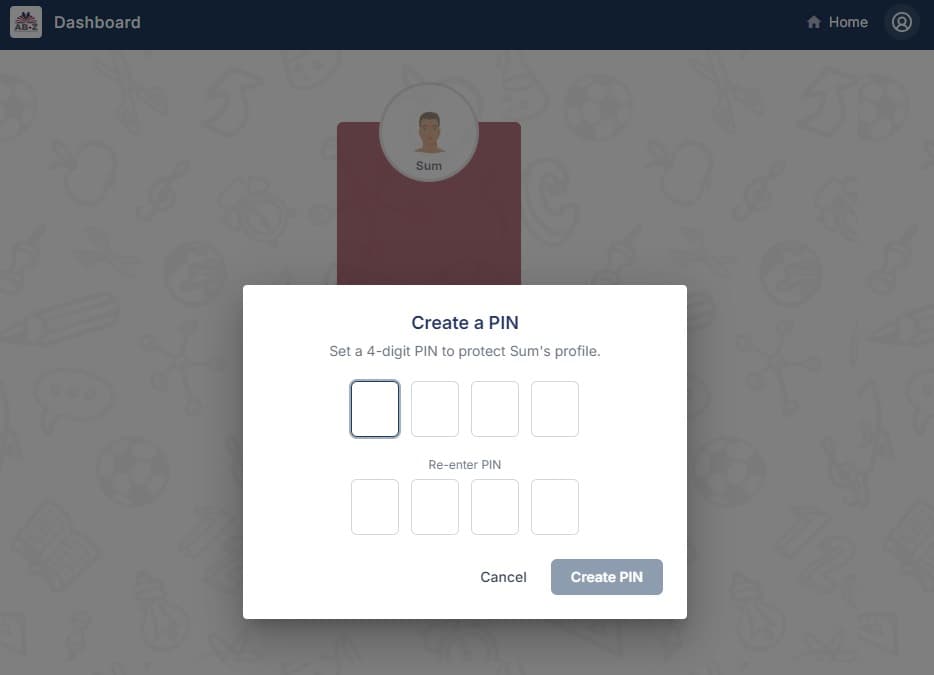
Once the payment is completed, the platform will automatically open up to the home/dashboard page where you will create/open your profile and secure it with a four-digit PIN.
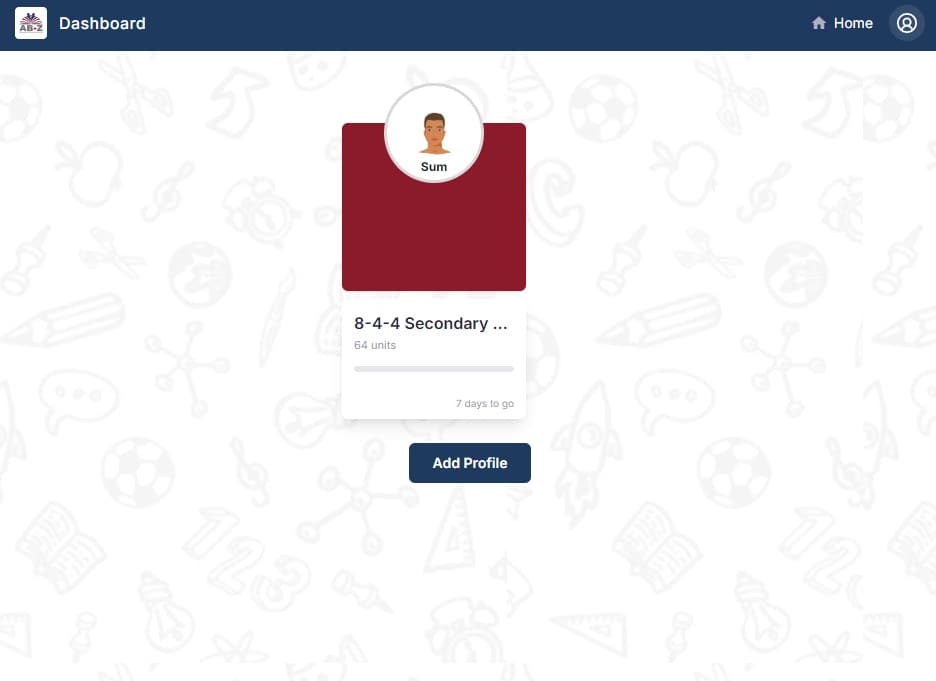
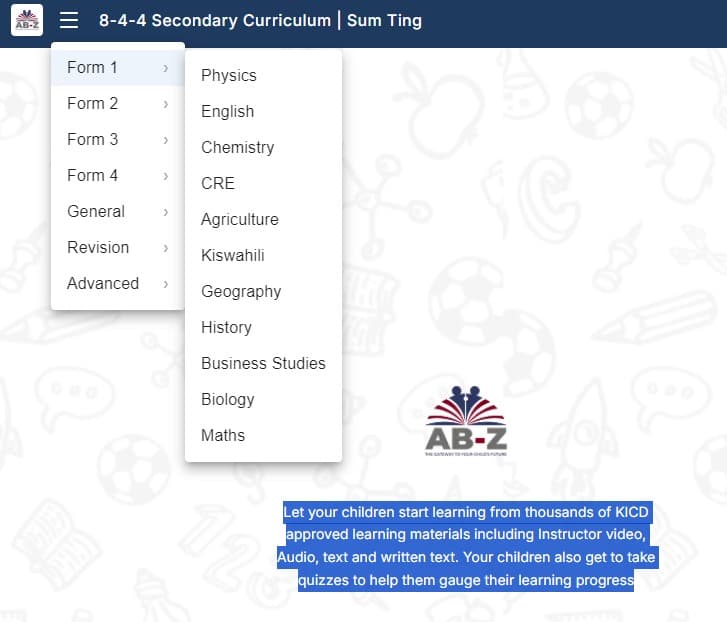
Click on the menu icon and select what you want to learn — e.g. Form 1 Biology.
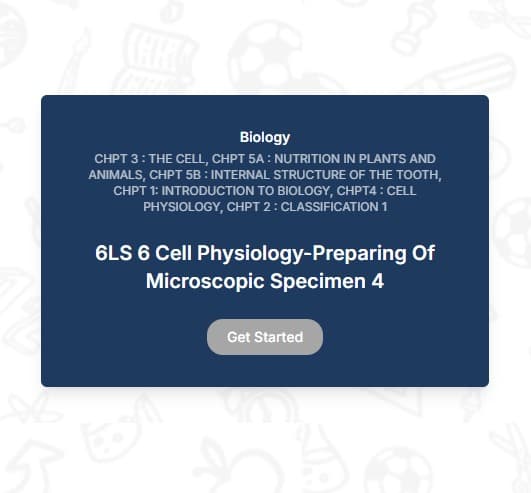
Then click Get Started.
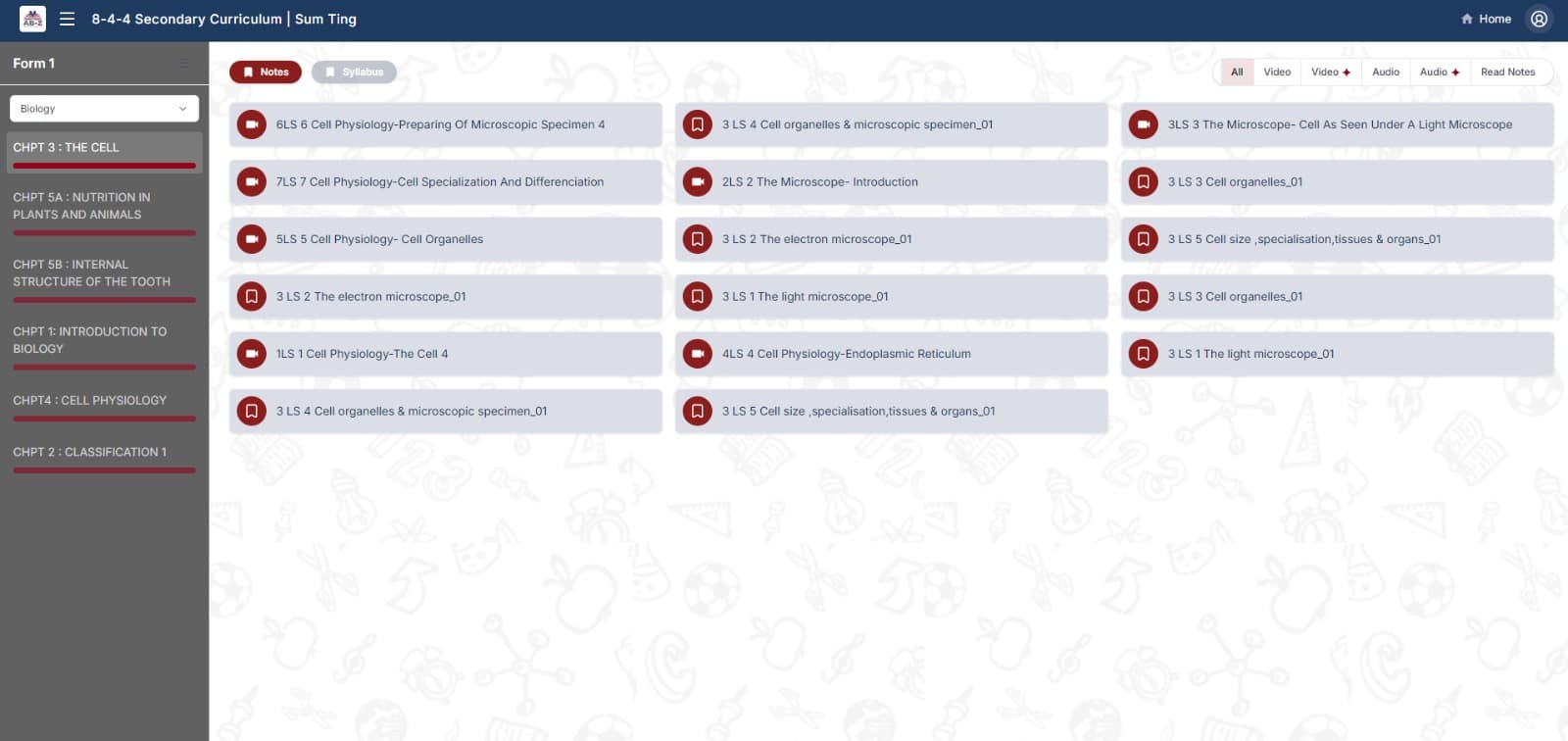
This will open up the content, which you can filter using the top right menu into video or audio.

The topics appear on the left and content on the right — select a lesson and start learning.
Guardian Checks
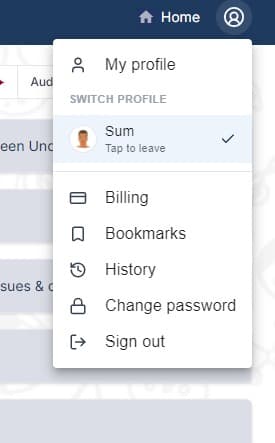
For accountability purposes a parent can check what the learner has interacted with from the History page, under Profile located on the top right corner of the home dashboard.